
One night, just as I was about to sleep, the Momcozy baby monitor screen went black. No warning. No sound. Just a dark screen and silence. I froze. Was it the charger? The battery? Or something worse?
If you’re reading this, you may be in the same boat. You press buttons. You restart the unit. Still nothing. And when you can’t see or hear your baby, it’s scary and stressful.
I’ve been there. I checked cables. I played with the settings. I even read the Momcozy BM01 and BM03 manuals and tried the Momcozy baby monitor app. After trying many things, I finally figured out what worked.
In this post, I’ll walk you through it—step by step. These are real fixes, not guesswork. If you’ve asked, “Why does my baby monitor keep going black?”, you’re in the right place.
Let’s fix it—together.
Common Reasons the Momcozy Monitor Screen Goes Black
If your Momcozy baby monitor screen goes black, don’t worry—most of the time, it’s something small and fixable. In my case, it wasn’t broken. It just needed a few setting changes and a good look at the power connection. Below are the most common reasons this happens, based on my own experience and what other parents have shared.
1. Power or Charging Issues
Quick Answer: A loose cable, weak battery, or faulty power adapter is one of the most common reasons your monitor screen goes black.
The first thing I checked was the charging cable. It looked fine, but when I swapped it with a different one, the screen came back. I was shocked it was that simple. Sometimes, the battery doesn’t charge well, or the plug isn’t pushed in all the way. If your unit turns off while not plugged in, or randomly shuts off even when charging, that’s your clue.
What causes monitor screen to go black? A poor power connection or dying battery is often the root cause.
Try this:
- Use a different cable or adapter.
- Clean the charging port with a soft brush.
Fully charge the device and try again.

2. Auto Screen-Off or VOX Mode Settings
Quick Answer: VOX mode turns the screen off when there’s no sound to save power. This often makes it look like the monitor is broken when it’s not.
This one got me for days. I thought the monitor was faulty. Turns out, it was just doing its job. The VOX mode (Voice Activation) makes the screen go black when the room is quiet. It only turns back on when your baby makes noise.
Why does my baby monitor keep going black? If VOX is on, the screen will sleep when there’s no sound, and this is normal behavior.
To check VOX settings:
- Go to the monitor menu.
- Find VOX or Sound Activation.
- Set it to “Low,” “Medium,” or turn it Off if you want the screen on all the time.
If your house is quiet, the monitor may seem off—but it’s actually in power-save mode.

3. Faulty Display or Firmware Glitch
Quick Answer: A software glitch or display issue can cause the screen to freeze or go black, especially on models like Momcozy BM01 and BM03.
After trying cables and settings, I finally checked the firmware version. Some monitors have buggy software that causes screen issues. This is more common in earlier versions of the Momcozy BM01, but I’ve seen similar behavior on the BM03 too.
The Momcozy BM03 manual recommends a full reset if the screen goes black or freezes. I followed the reset steps (I’ll share them later), and it helped right away.
If none of the basics fix it, a firmware reset or update may be needed.
Try this:
- Unplug both units (monitor and camera).
- Hold the reset button for 5–10 seconds.
- Let it reboot completely.

What Finally Fixed My Momcozy Monitor (Step-by-Step)
Quick Answer: What finally fixed my Momcozy baby monitor screen going black was a mix of resetting, adjusting VOX mode, and swapping the charging cable.
After trying a bunch of things that didn’t work, I found a combo that finally did. And it wasn’t just one fix—it was a few small steps that made a big difference. If your Momcozy baby monitor screen goes black, here’s exactly what I did to bring it back to life.
Step 1: I Swapped the Charging Cable
Step 1: I Swapped the Charging Cable
At first, I didn’t think the cable was the issue. It looked fine. But once I tried a different one, the screen turned back on. Turns out, the original cord was working just enough to show a charging light, but not enough to power the display. If your issue is more about charging than screen blackout
check out my guide on fixing a Hello Baby monitor that won’t charge.”
Fix Tip: Always try a different cable and wall adapter—even if yours looks okay. I swapped the charging cable with this replacement cable I found on Amazon, and it worked perfectly.
Step 2: I Turned Off VOX Mode
Next, I went into the settings menu and turned VOX mode off. My room was quiet, so the screen kept going black—even though the monitor was working.
Fix Tip: If your monitor screen goes black when it’s quiet, VOX mode might be on.
Here’s how I turned it off:
- Press the Menu button on the monitor.
- Scroll to the VOX/Sound Activation setting.
- Set it to Off (or “Low” if you want light activation).
The screen stayed on after that.
Step 3: I Reset the Monitor and Camera
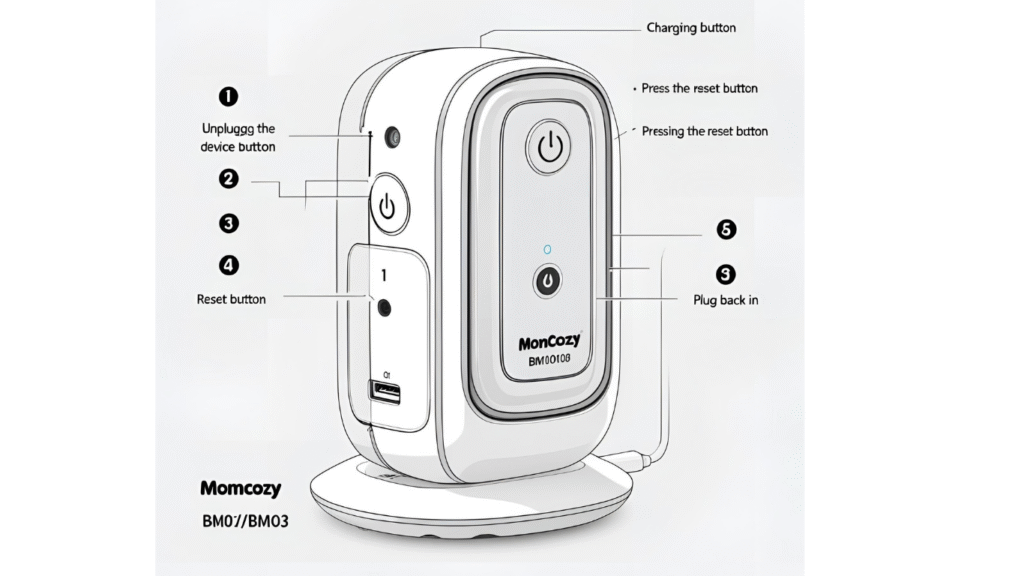
Still having random blackouts? A simple reset can clear firmware bugs. My BM01 had a small glitch that only went away after a full reset.
Fix Tip: A full reboot can solve display and connection problems.
To reset both units:
- Unplug the camera and monitor.
- Hold the reset button on each for 5–10 seconds (you’ll need a paperclip).
- Plug them back in and let them reconnect.
This cleared out any glitches and fixed the screen blacking out mid-use. Looking for backup options while traveling? Here are the best baby monitors for camping without electricity.”
Step 4: I Let It Charge Fully Before Use
One mistake I made was using the monitor while it was only partly charged. After the reset, I let the unit charge for a full two hours. No screen dropouts since.
Fix Tip: A weak battery—even if it looks full—can cause random shutdowns.
Always let it charge fully, especially after resetting or changing cables.
These four steps—changing the cable, turning off VOX mode, resetting both units, and giving it a full charge—completely fixed my issue. The screen hasn’t gone black since, and I didn’t need to replace the monitor.
If you’re stuck, try each one in order. One of them may be the key to bringing your monitor back to life—just like it was for mine.
Specific Fixes for Momcozy BM01 and BM03 Models
Quick Answer: The fix for a black screen can vary slightly between the Momcozy BM01 and BM03—check model-specific settings, firmware quirks, and button layouts.
When I started troubleshooting, I didn’t realize how different the BM01 and BM03 were. The menus look similar, but the bugs and fixes? Not always the same. Here’s what I learned while testing both models.
BM01: More Prone to Firmware Glitches
BM01 units seem to have more issues with software freezes. Mine would show a black screen even after a reset. I had to do a hard reset (holding the reset pin for 10+ seconds) and then pair it again with the camera.
Fix Tip for BM01:
- Do a full reset with a pin.
- Then unplug the camera, wait 30 seconds, and plug it back in.
- Go to “Pair” in the menu and re-sync the devices.
This cleared the glitch for me. If your Momcozy BM01 screen keeps going black, a deeper reset is often needed.
BM03: VOX and Brightness Settings Matter More
The BM03 worked better overall, but it had different issues. Its VOX setting was way too sensitive. The screen would keep going black even with tiny pauses in background noise. Also, brightness was set to low by default.
Fix Tip for BM03:
- Turn VOX mode off or set it to “Low.”
- Go to Settings > Brightness and increase it.
- Make sure power-saving mode is off.
These changes made the screen stay on even in a quiet room. If you’re using BM03, it’s more about settings than hardware.
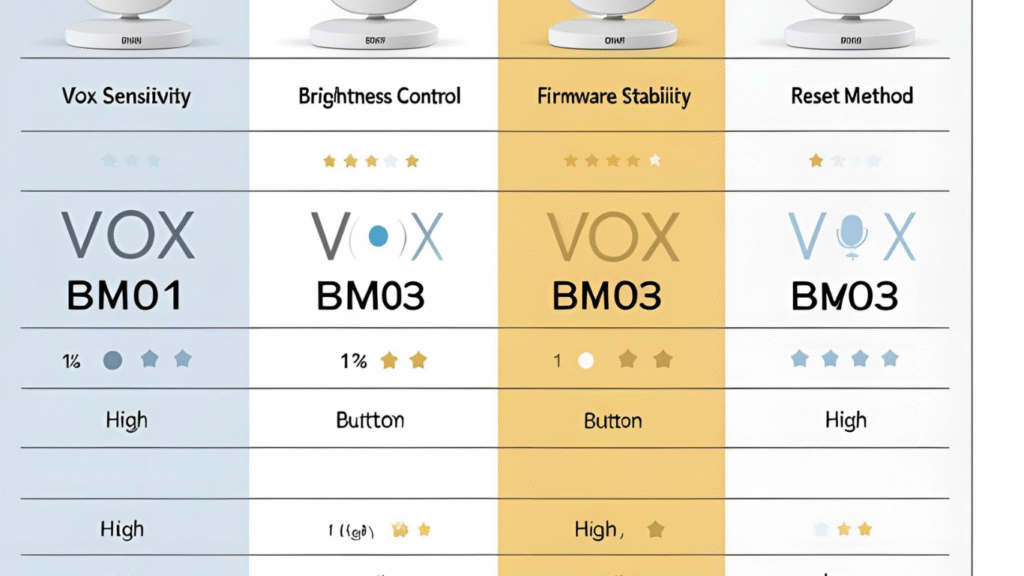
Quick Comparison: BM01 vs. BM03 Fixes
Feature / Issue | Momcozy BM01 | Momcozy BM03 |
Reset Method | Pin reset + power unplug | Quick reset in menu |
VOX Sensitivity | Moderate | Very sensitive |
Firmware Stability | Less stable | More stable |
Brightness Options | Basic | Adjustable via settings |
Common Fix Needed | Full reset + pairing | VOX + brightness tweaks |
So if your Momcozy baby monitor screen goes black, check which model you’re using. The BM01 may need a full reset and re-pairing, while the BM03 usually just needs a few setting changes. If you’re dealing with a frozen screen instead of a black one, here’s how I fixed my VTech monitor.”
When You Might Need a Replacement
Quick Answer:
If your screen still goes black after resets, cable swaps, and setting changes, your Momcozy monitor might be defective — and a replacement may be the best option.
I hate jumping to replacements. I like to fix things first. But after you’ve tried everything—new cables, VOX off, brightness up, full resets—and your Momcozy baby monitor screen goes black again and again, it may not be something you can solve at home.
Signs Your Monitor May Be Failing
The screen stays black even after full reset
The device won’t turn on unless you shake or press hard
Screen flickers or turns off randomly
You smell plastic heating or hear buzzing
Your battery doesn’t hold a charge at all
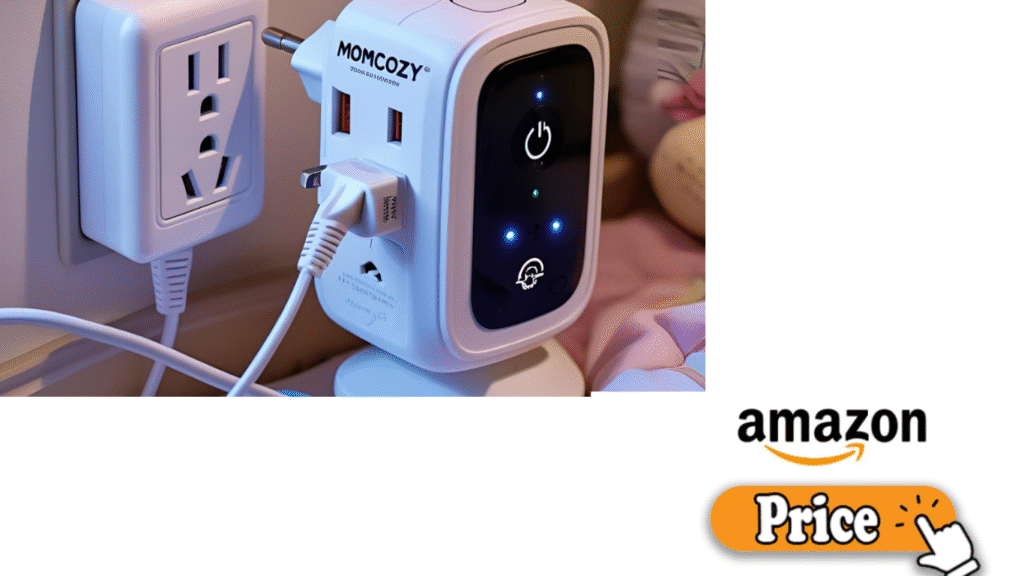
If any of these happen after trying the steps above, you might be dealing with a hardware issue, not just a settings glitch. In that case, you can check replacement options on Amazon:
Contacting Momcozy for Support
Fix Tip: Don’t toss it yet—check if your unit is still under warranty.
Here’s how I contacted Momcozy support:
- Provide your order number, model (BM01 or BM03), and describe the issue clearly
- Attach a short video of the black screen—it helps them respond faster
They replied to me within 48 hours, and offered a replacement once I showed proof of purchase.
Where to Find a Momcozy Monitor Replacement
If you’re out of warranty, don’t worry. You can still buy a replacement unit or just the parent monitor:
- Check Momcozy’s official site
- Amazon often sells standalone BM01 and BM03 units
- Be sure to match your camera model with the monitor version
So, if you’ve tried all the fixes and your screen still acts up, don’t feel bad. Sometimes it’s not something you did—it’s just time for a Momcozy monitor replacement.
Can You Fix It Through the Momcozy App?
Quick Answer: The Momcozy baby monitor app doesn’t directly control the BM01 or BM03, but it can help if you’re using a compatible WiFi-based model.
When my screen first went black, one of the first things I searched was, “Can I fix this with the Momcozy baby monitor app?” I had seen the app mentioned online and wondered if it could help reset or reconnect the system. Turns out, it depends on which model you have.
App Compatibility: What the App Can (and Can’t) Do
The Momcozy baby monitor app is mainly for their WiFi-enabled cameras—not for the BM01 or BM03, which run on non-WiFi signals (RF). If you’re using BM01 or BM03, the app won’t pair with your monitor or show your video feed.
Fix Tip: If you’re using BM01 or BM03, the app won’t help with a black screen—it only supports WiFi models.
However, if you’re using a newer WiFi version (some bundles from 2024+ include app-ready cams), the app can help with:
- Viewing your baby on your phone
- Checking if the camera is still live
- Testing if the issue is with the screen or the camera itself
Real-World Use: How I Tested It
Just to be sure, I downloaded the app and tried pairing it with my BM03. It didn’t work (not supported). But when I helped a friend set up her app-ready Momcozy cam, we were able to check video feed even when her monitor screen went black—so the issue was with her parent unit, not the camera.
Summary: Should You Try the App?
If you’re using BM01 or BM03, skip the app—it won’t help.
If you have a WiFi Momcozy camera, the app can show you if the issue is only with the screen.
Still stuck? The fix might be one step away. Next, I’ll share How to Prevent the Screen From Going Black Again—a quick checklist that worked for me long-term.
How to Prevent the Screen From Going Black Again
Quick Answer: Keep your monitor charged, turn off VOX mode if needed, and restart it regularly to avoid screen blackout issues.
After fixing my monitor, I didn’t want to go through the stress again. So, I made a habit of doing a few simple things that have kept my Momcozy baby monitor screen from going black ever since. These steps are quick, easy, and take less than a minute to check.
1. Keep It Fully Charged
A weak or unstable battery is often behind screen flickering or random blackouts. Even if the battery icon looks full, it might not be holding power well.
Fix Tip: Let your monitor charge fully once a day, even if it looks okay. If the screen only works while plugged in, your battery might need replacing.
2. Adjust VOX Mode Settings
VOX mode is great for saving power, but it also turns the screen off when your baby is quiet. If you want the screen to stay on, turn VOX off or set it to low sensitivity.
Fix Tip: Go to your menu → VOX → Set to “Low” or “Off” to keep the screen active.
This helped me when I was checking in during naps or quiet nights. No more surprise blackouts.
3. Restart Regularly
Just like a smartphone, your monitor can slow down or bug out if it’s left on for days. I now restart mine every night before bed—just a quick off/on cycle.
Fix Tip: Restart your monitor daily to keep software bugs from building up.
It sounds silly, but this one habit kept my screen running smooth.
4. Clean the Charging Port
Dust or lint in the port can weaken the connection, which messes with power delivery. I used a soft cleaning brush for charging ports to gently remove dust and lint.
Fix Tip: A dirty charging port can mimic battery problems—clean it often.
Quick Checklist (Save or Screenshot This)
- Let it charge fully once a day
- Turn VOX mode off or to “Low”
- Restart the unit daily
- Clean the charging port weekly
- Use only original Momcozy chargers or other good-quality chargers for Momcozy baby monitors to ensure stable performance.
Final Thoughts
Quick Answer: Most black screen issues on the Momcozy baby monitor come from settings, power, or firmware—not from a broken device.
When my Momcozy baby monitor screen went black, I thought the worst. But looking back, it wasn’t broken—it just needed the right fix. Between changing VOX mode, cleaning the charging port, and doing a hard reset, I got it working again without spending a dime.
If you’ve been feeling frustrated or even a little helpless—I get it. It’s scary when the one thing that helps you watch over your baby suddenly goes dark. But don’t panic. These problems are common, and they’re usually fixable with a few simple steps.
So take a breath. Try the fixes I’ve shared above. Most likely, your monitor just needs a reset, a better cable, or a settings tweak.
Let’s Help Each Other
Still stuck? Or did something different work for you?
Drop a comment below and let me know. I’d love to hear your fix—it might help another parent in the same boat.
And if this post helped you, feel free to share it. We all need a little backup sometimes.
FAQs
Why does my baby monitor screen go black but still has sound?
Quick Answer: This usually happens when VOX mode is on. The screen turns off to save power but the audio stays active.
If your Momcozy baby monitor screen goes black but you can still hear sound, it’s likely not broken. VOX mode turns the screen off when your baby is quiet and turns it back on when noise is detected.
Fix it: Go to the monitor settings and turn VOX mode off or to a lower sensitivity.
How do I turn off VOX mode on the Momcozy baby monitor?
Quick Answer: Go to the monitor menu, find VOX or Sound Activation, and select “Off.”
On most Momcozy models, VOX mode is in the settings menu. Turning it off will keep the screen on all the time, even if your baby is silent.
Tip: If you want the screen to stay on overnight, disabling VOX is the best solution.
Is my Momcozy BM01 or BM03 defective if the screen keeps going black?
Quick Answer: Not necessarily. Most screen issues are due to power, VOX settings, or firmware glitches.
If you’ve already tried new cables, turned off VOX, and done a full reset—but the screen still blacks out randomly—your Momcozy BM01 or BM03 may have a hardware issue.
Next step: Contact Momcozy support with your model and proof of purchase. They may offer a free replacement.
Can I reset my Momcozy baby monitor without losing settings?
Quick Answer: Yes. A soft reset (power cycle) won’t erase settings. A factory reset might.
Unplugging and replugging both the monitor and camera is safe and won’t affect your saved preferences. Only a factory reset will restore everything to default.
Tip: Try a soft reset first. If that doesn’t work, check your manual for the full reset steps.
What should I do if my Momcozy baby monitor won’t turn back on after going black?
Quick Answer: Try a different charger, hold the power button for 10 seconds, and clean the charging port.
Sometimes it’s just a power delivery issue. If that fails, do a full reset: unplug the camera and monitor, press the reset button, and wait 30 seconds before plugging back in.
Still not working? Reach out to Momcozy support or consider a Momcozy monitor replacement.

Pingback: Hello Baby Monitor Vs Eufy: My Honest Comparison After 6 Stressful Nights - Moms Pal
Pingback: Hello Baby Monitor Switching Between Cameras: How I Manage Multiple Views With Ease - Moms Pal
Pingback: Momcozy Vs PharMeDoc Pregnancy Pillow: My Surprising Sleep Breakthrough - Moms Pal
Pingback: Momcozy Vs Hello Baby Monitor: My Honest Hands-On Verdict - Moms Pal
Pingback: Why My Momcozy Temperature Sensor Stopped Working - Moms Pal