
Traveling with a baby already feels like juggling glass, so when my home Wi-Fi dropped mid-trip, the first thing I asked was: can nanit work on hotspot without losing peace of mind. I’ve relied on my Nanit camera through hotel Wi-Fi hiccups, iPhone hotspot experiments, and even a portable Wi-Fi hotspot that barely held on. Those moments taught me what actually works, what quietly fails, and why an internet connection matters more than most parents realize. In this guide, I’ll walk you through connecting Nanit to a personal hotspot, using it while traveling, and avoiding common setup traps. If you’re planning a trip or living on mobile data, this will save you stress—and sleep.
Does Nanit Work Without Traditional Wi-Fi?
Short answer: No—there isn’t a way to use Nanit without Wi-Fi. The Nanit monitor needs an active internet connection because everything runs through the cloud. Video streaming, alerts, and sleep data all travel from the Nanit camera to Nanit’s servers, then back to your phone. Without internet access, the app simply has nothing to pull from.
Here’s the key thing many parents mix up: Wi-Fi is not the same as the internet. Wi-Fi is just the local connection, like a road inside your house, while the internet is the highway outside. Nanit doesn’t care where the internet comes from—as long as that highway exists. That’s why a personal hotspot can work, but a Wi-Fi network with no internet won’t.
Nanit also doesn’t support Bluetooth-only or offline viewing. I learned this the hard way when our router went down overnight. The camera powered on, but the app stayed blank. It felt like having a baby monitor with the screen turned off—technically there, but useless when you need it most.
Can Nanit Work on a Mobile Hotspot?
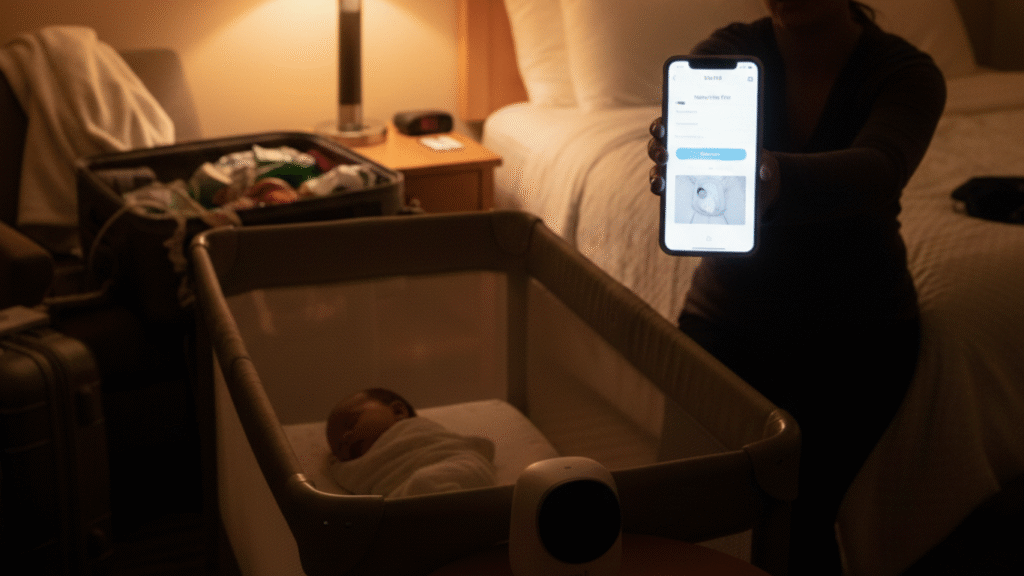
Yes—Nanit can work on a mobile hotspot, but there are a few conditions that matter. The hotspot must provide a stable internet connection, not just a strong signal. When those basics are met, Nanit usually connects just fine and behaves like it’s on home Wi-Fi.
A mobile hotspot acts as a middleman. Your phone or portable Wi-Fi hotspot pulls mobile data, then shares it as Wi-Fi for the Nanit camera. Speed helps, but stability matters more than raw speed. I’ve seen Nanit run smoothly on slower LTE when the connection was steady, and fail on fast networks that dropped every few minutes.
Hotspots work best for short trips, temporary outages, or travel days. They struggle when data limits kick in, signals weaken, or too many devices jump on the same connection. That’s when you start seeing lag or missed alerts.
Using a Phone Hotspot With Nanit (Real-Life Results)
In real life, using a phone hotspot with Nanit feels a bit like balancing a cup of water in a moving car. It works—but bumps matter. Streaming HD video from the Nanit monitor can use a surprising amount of data, especially if you leave the app open often.
Latency is the next thing you’ll notice. Alerts can arrive a few seconds late, and live video may lag behind real time. It’s not dangerous, but it’s noticeable when you’re used to instant updates. This is normal for any mobile hotspot connection.
The most common setup issue I ran into was the camera failing to finish pairing. Restarting the phone hotspot, placing the phone closer to the Nanit camera, and temporarily turning off other connected devices usually fixed it. Once connected, though, the system stayed stable—as long as the phone had signal and battery to spare.
If you want, next I can write the iPhone hotspot section with step-by-step clarity or keep moving through the outline in order.
Can I Connect My Nanit to an iPhone Hotspot?
Yes, you can connect Nanit to an iPhone hotspot, and it’s something I’ve done more times than I can count. The setup is simple: turn on Personal Hotspot on your iPhone, open the Nanit app, and connect the Nanit camera like you would to any Wi-Fi network. If your phone has a steady signal, Nanit usually comes online within a minute.
One iPhone setting matters more than people realize. Nanit prefers a 2.4GHz-style connection, and iPhones automatically manage this when you enable Personal Hotspot. You don’t need to tweak techy settings, but keeping your phone close to the Nanit monitor helps the camera lock on faster. Distance, not speed, is often the hidden issue.
Some iPhones work better simply because of hardware and carrier support. Newer iPhones hold a more stable hotspot signal and recover faster after drops. Older models can still work, but they disconnect more easily when the phone locks or switches towers. I noticed this clearly when upgrading phones—it felt like night and day.
Battery drain is the trade-off no one warns you about. Using an iPhone hotspot for Nanit drains battery fast and makes the phone warm. I always keep my phone plugged in and set nearby, like a lifeline. It’s safe, but it’s not something I’d run overnight without power.
How to Connect Nanit Camera When Traveling
You can use Nanit while traveling, but preparation makes all the difference. I’ve connected my Nanit camera in Airbnbs, hotels, and relatives’ homes, and each setup feels slightly different. The core rule stays the same: Nanit needs a reliable internet connection, not just a Wi-Fi name.
At an Airbnb or family home, setup is usually smooth. You connect Nanit to their Wi-Fi once, and you’re done. I always ask for the Wi-Fi name and password before bedtime so I’m not troubleshooting with a sleepy baby nearby.
Hotels are trickier, and I’ll explain why below. Because of that, I pack a few essentials when traveling with Nanit: a long power cable, a phone charger, and a backup hotspot option. My pre-trip checklist includes testing the Nanit camera on a hotspot at home so there are no surprises later.
Using Nanit on Hotel Wi-Fi (What Usually Goes Wrong)
Hotel Wi-Fi is the most common reason Nanit fails while traveling. Many hotel networks use captive portals, which are those login pages where you accept terms before getting internet. Nanit can’t open those pages, so it gets stuck without access.
This doesn’t mean the Nanit camera is broken—it just can’t “click” the login button. I’ve had nights where the Wi-Fi looked strong, but Nanit never connected. It’s frustrating, especially when you’re exhausted and just want peace of mind.
My workaround is simple and reliable. I use a phone hotspot or a small travel router that connects to hotel Wi-Fi once and then creates a private network for Nanit. That single trick has saved me more stress than any baby gear I own.
Can You Connect Nanit to an Unsecured Network?
Technically, Nanit can connect to an unsecured network, but it’s not ideal. An unsecured network means there’s no password or encryption protecting the data. While Nanit prioritizes secure connections, it doesn’t always block open networks outright.
The real concern here is safety, not function. Video feeds and account data are sensitive, and open networks increase risk. I avoid unsecured Wi-Fi whenever possible, especially for a baby monitor that streams live video.
A safer alternative is using a personal hotspot or travel router. These create a private, password-protected network even when the source internet is public. It adds one extra step, but it keeps your Nanit monitor—and your peace of mind—protected.
If you’re ready, the next strong section would be Best Travel Internet Options for Using Nanit, where everything starts to click together for readers.
Best Travel Internet Options for Using Nanit
The best travel internet option for Nanit depends on how often you travel and how stable you need the connection to be. Over time, I’ve tested phone hotspots, portable Wi-Fi hotspots, and travel routers with my Nanit monitor. Each works, but they shine in different situations.
If you only travel once in a while, a phone hotspot can be enough. If you travel often, or stay more than a night or two, a dedicated setup saves stress. Choosing the right option upfront prevents late-night setup headaches.
Portable Wi-Fi Hotspot vs Phone Hotspot
Both options work with Nanit, but they serve different needs. A phone hotspot is convenient because it’s always with you. A portable Wi-Fi hotspot is more stable and doesn’t drain your phone.
Phone hotspots are great for short trips or emergencies. The downside is battery drain and heat, which I’ve felt during overnight use. Portable Wi-Fi hotspots run longer, stay cooler, and handle steady video streaming better.
For reliability, portable hotspots win. They hold a consistent internet connection and don’t pause when a call comes in. I recommend phone hotspots for quick travel and portable Wi-Fi hotspots for multi-day trips.
Using a Travel Router With Nanit Pro
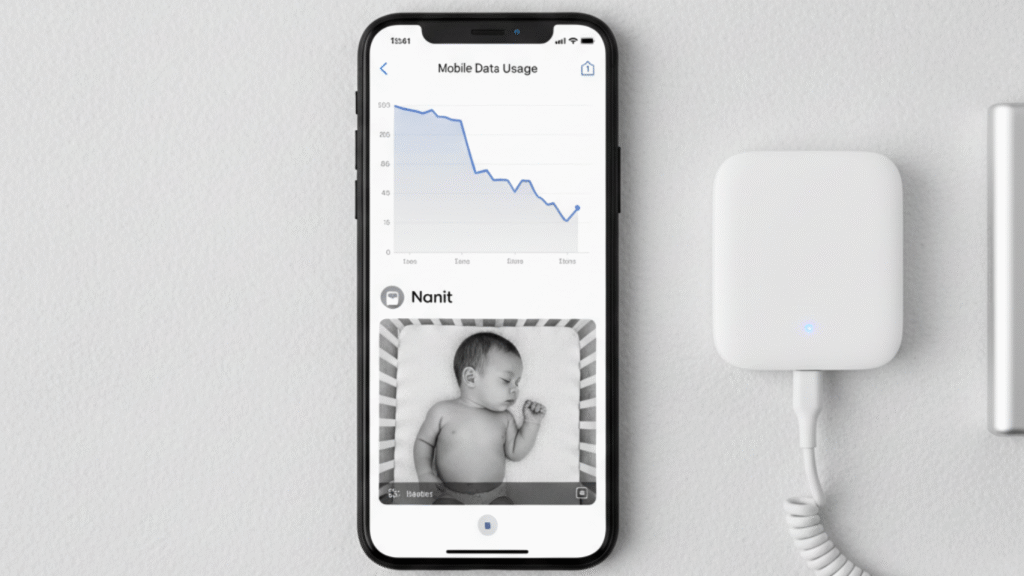
A travel router is the most reliable setup for Nanit Pro while traveling. It connects to hotel Wi-Fi once and creates a private network that Nanit can use. This bypasses login pages that usually block baby monitors.
This is my preferred setup because it feels like home Wi-Fi on the road. I connect everything once and forget about it. No daily reconnecting. No bedtime stress.
Travel routers are ideal for longer trips, frequent travel, or hotel stays. If you travel with Nanit often, this small device pays for itself quickly.
Data Usage & Performance Expectations
Nanit uses more data than most parents expect. On average, the Nanit monitor can use 300–500 MB per day with regular live viewing. Leaving the live feed open for long periods pushes usage higher.
Hotspot data caps matter here. Watching in HD uses more data but gives clearer video. Lower quality saves data but still delivers alerts and peace of mind.
On slower internet connections, notifications usually still work. Live video may lag, but motion and sound alerts remain reliable. That trade-off is worth knowing before you travel.
Common Nanit Hotspot Problems (And Fixes)
If Nanit won’t connect, the issue is usually the hotspot—not the camera. Restart the hotspot, move it closer to the Nanit camera, and try again. This solves most connection failures.
When the app finds Wi-Fi but won’t finish setup, the signal is often unstable. Turn off other devices using the hotspot and retry. Less traffic helps Nanit connect faster.
Frequent disconnections usually mean weak mobile signal or overheating phones. Plug the phone in and keep it cool. For delayed breathing or motion alerts, check data limits and background app settings. Once fixed, alerts usually return to normal.
Is Using Nanit on a Hotspot Worth It?
Yes, using Nanit on a hotspot is worth it—for the right situation. It’s perfect for travel, power outages, and temporary setups. It keeps your routine intact when home Wi-Fi isn’t available.
This setup works best for short-term use and parents who check in often. It’s less ideal for full-time monitoring or overnight use without power. Battery drain and data limits add up.
From my experience, hotspots are a safety net, not a forever solution. When used thoughtfully, they keep Nanit reliable—and parents calm—wherever the night takes you.
FAQs About Nanit and Hotspot Use
Can Nanit work on a hotspot full-time?
Yes, Nanit can work on a hotspot full-time, but it’s not ideal. Battery drain, data limits, and drops can add up. Learn more about better long-term setups.
Can I use Nanit with only mobile data?
Yes, Nanit works with mobile data through a phone or portable hotspot. It still needs internet access to stream video and send alerts. Learn more about data use.
Does Nanit work internationally with a hotspot?
Yes, Nanit works internationally if your hotspot provides stable internet. Roaming data costs and weaker signals can affect performance. Learn more before traveling abroad.
Why won’t Nanit connect to my phone hotspot?
Nanit may not connect if the hotspot is unstable, far away, or overloaded. Restarting the hotspot and moving closer often fixes it. Learn more troubleshooting tips.
Is Nanit safe to use on public Wi-Fi?
Nanit can work on public Wi-Fi, but it’s not the safest option. Open networks increase risk. Learn more about safer options like hotspots or travel routers.
Conclusion
Yes—Nanit can work on a hotspot, but the setup you choose makes all the difference. A strong, steady internet connection matters more than speed, and small details like distance, data limits, and power can change the experience fast.

The right option depends on your life. A phone hotspot works for quick trips. A portable hotspot or travel router is better for longer stays or frequent travel. Matching the setup to your routine saves stress when it matters most.
If you travel often, take a few minutes to plan ahead. Check out a simple travel setup checklist, explore related Nanit guides, or compare internet options to find what fits your family best. A little prep now can mean a much calmer night later.
Pingback: What Is The Longest Range Baby Monitor? (Real-World Range Explained) - Moms Pal